User Interface Overview
The user interface is divided into three parts:
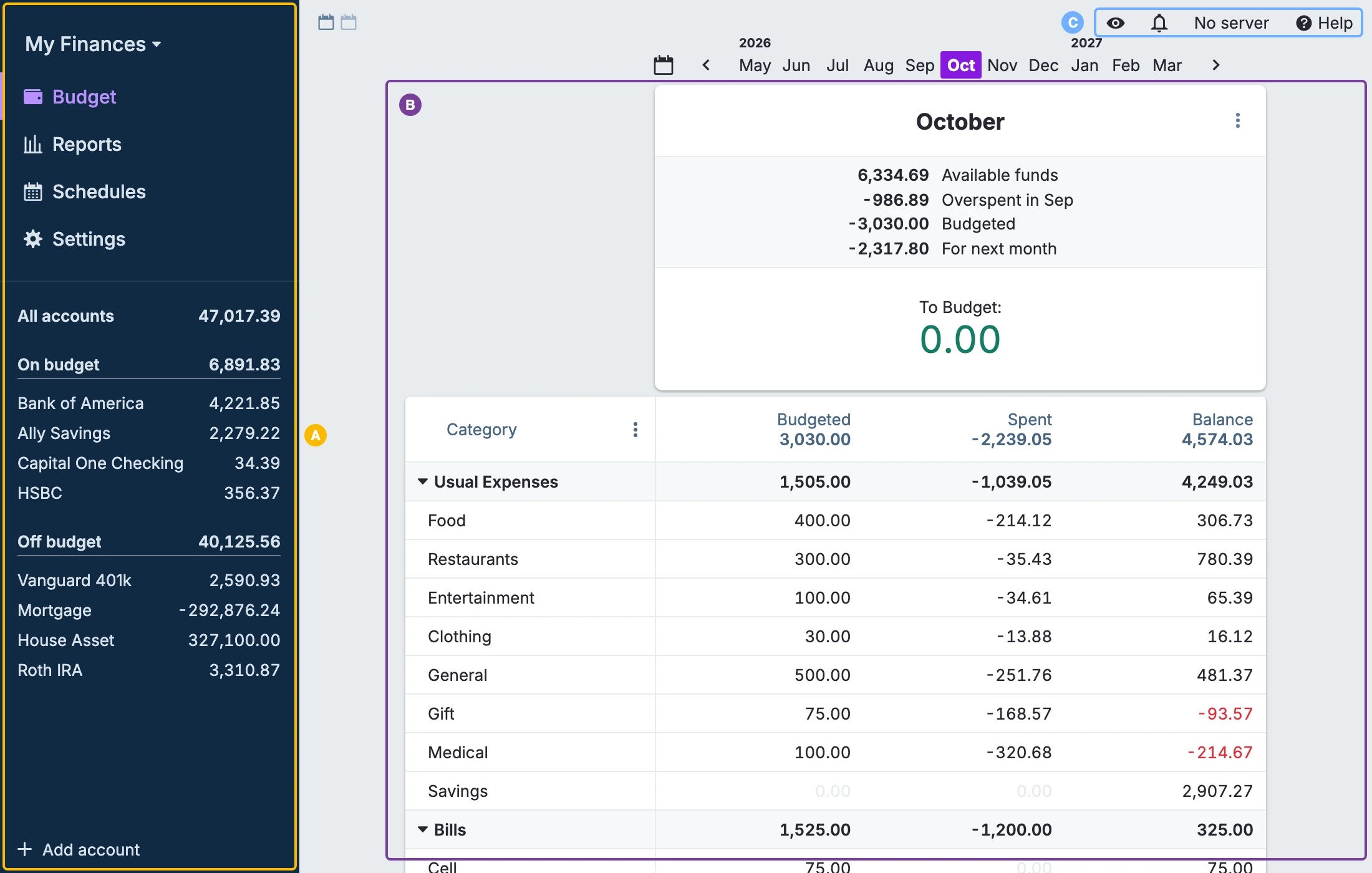
Standard on most screens:
- A. Sidebar. The left sidebar lets you easily switch between the various views, such as Budget, Reports, and Accounts.
- B. Content. The content of the rest of the interface depends on the view you have chosen in the sidebar. This screenshot shows an example of a Budget view.
- C. Top right corner. The server status (if used) is shown in the upper right corner.
Top Right Corner
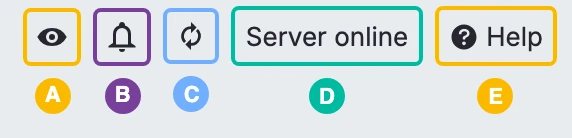
- A. Privacy. The eye icon will scramble the numbers on the screen. This is useful if you need to report a bug to the Actual team but want to keep your numbers private. There are some caveats to this, so please read Scramble and Hide Data in the Tips & Tricks guide.
- B. Notifications. The bell opens the Notifications page with release notes and announcements from the Actual project.
- C. Sync. Clicking on the refresh icon will force a sync of your local file to the server. Note: it does not perform a bank sync. It's only shown when you use a server.
- D. Server status. Server online shows the server is connected, Server offline shows the server is disconnected, and No server shows if you are not using a server. If you click on this text a server menu pops up.
- E. Help. The farthest right item is a Help menu.
The Sidebar
The sidebar is how you move between the main parts of Actual.
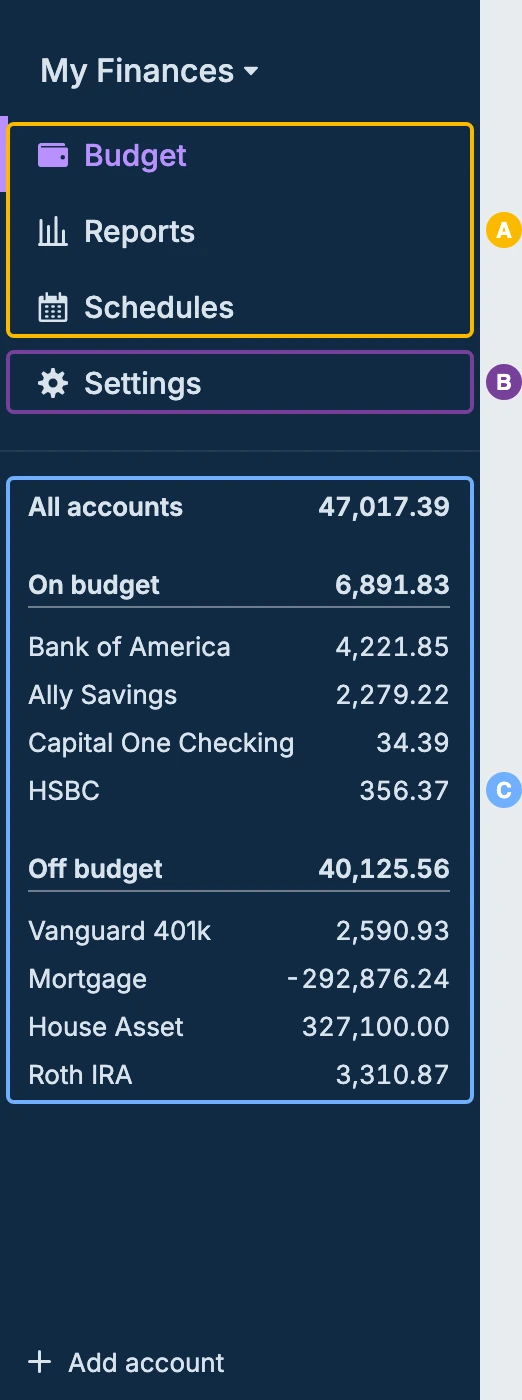
- A. Navigation. The menu at the top links to your Budget, Reports and Schedules. Less used pages, like Payees, Rules and Tags, are in Settings. The Sidebar section of the settings lets you choose which pages appear in the menu.
- B. Settings. Settings is at the bottom of the menu.
- C. Accounts. Below the menu are all of your accounts, both on budget and off budget, listed under their respective heading.
Most of these we will cover later in the tour.